

Claude AI has quickly become a popular AI assistant for people who want help with writing, research, coding, and analyzing information. From creating blog ideas and summarizing long documents to explaining complex topics and improving workflows, Claude can handle a wide range of tasks.
The good news is that you do not need a paid subscription to start using it. The Claude AI free version allows users to explore its core features and understand how AI can support their daily work, learning, and creative projects.
In this guide, you will learn how to use Claude AI for free step by step. We will cover how to create an account, use Claude effectively, write better prompts, explore practical use cases, understand free plan limitations, compare free and paid options, and get better results from Claude AI.
Is Claude AI Free to Use?
Yes, Claude AI offers a free version that allows users to access its AI assistant without paying for a subscription. The free plan is designed for people who want to explore Claude’s capabilities for tasks like writing, learning, brainstorming, coding assistance, and analyzing information.
The free version gives you access to many useful features, including chatting with Claude on web, mobile, and desktop, creating content, generating code, analyzing text and images, and working with files. However, free users have limited usage compared to paid subscribers, and the available usage can vary depending on demand and the type of tasks you perform
What Can You Do With Claude AI Free?
Many users think the free version of Claude AI is only useful for asking simple questions, but it can handle much more than that. With the free plan, you can use Claude as a writing assistant, research partner, coding helper, and learning tool for different everyday and professional tasks.
The main advantage is that you can test Claude’s capabilities without paying for a subscription. Whether you need help creating content, understanding complex information, or organizing ideas, Claude can assist you with practical tasks.
Create and Improve Content
Claude can help writers, marketers, and business owners create better content faster. Instead of starting from a blank page, you can use Claude to generate ideas, structure your content, and improve existing drafts.
You can use Claude for:
- Creating blog outlines based on search intent
- Rewriting content for better readability
- Improving grammar and sentence flow
- Writing emails, product descriptions, and social media posts
- Generating content ideas for websites
Example prompt:
“Act as an SEO content strategist. Create a detailed outline for an article about AI productivity tools. Include user search intent, H2 and H3 headings, related questions, and practical examples.”
Analyze Documents and Extract Important Information
One of Claude’s useful features is its ability to work with documents. Instead of manually reading long files, you can ask Claude to summarize information, find important points, or explain specific sections.
You can use it for:
- Summarizing research papers
- Reviewing business documents
- Extracting key information from reports
- Creating notes from long content
- Comparing information from different files
This can save time when you need quick insights from large amounts of text.
Learn New Skills and Understand Complex Topics
Claude can act like a personal tutor by explaining difficult concepts in simpler language. You can adjust the explanation level depending on your experience.
For example, you can ask Claude to:
- Explain technical concepts for beginners
- Create learning plans
- Summarize educational material
- Generate practice questions
- Compare different ideas
This makes Claude useful for students, professionals, and anyone learning a new skill.
Get Help With Coding and Technical Tasks
Developers and beginners can use Claude for programming assistance. It can help explain code, identify errors, and suggest improvements.
You can ask Claude to:
- Explain programming concepts
- Review code structure
- Find bugs
- Generate code examples
- Improve documentation
Example prompt:
“Review this Python script as a senior developer. Identify errors, explain why they occur, and suggest improvements with optimized code.”
Plan Projects and Organize Ideas
Claude can also help with planning and decision-making tasks. You can use it to organize information and create structured plans.
Examples include:
- Creating project plans
- Building content calendars
- Preparing meeting summaries
- Brainstorming business ideas
- Creating checklists
Overall, the free version of Claude AI provides enough features for most everyday users. Once you understand how to use Claude AI for free, you can use it for much more than basic conversations and improve the way you work, learn, and create.
How to Create a Free Claude AI Account (Step-by-Step)
Before you can start using Claude’s features, you need to create a free account. The signup process is simple and does not require any technical skills. In just a few steps, you can access Claude’s chat interface and start using it for writing, research, coding help, brainstorming, and other daily tasks.
Follow these steps to get started:
Step 1: Open the Claude AI Website
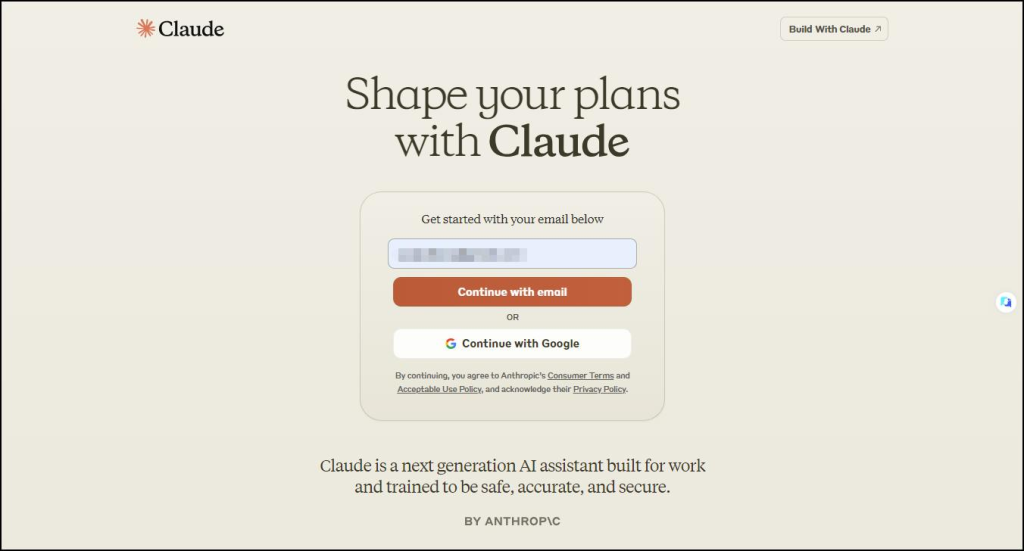
First, open your web browser and visit the official Claude AI website. On the homepage, you will find an option to create an account or get started.
Click the signup button to begin the registration process.
Step 2: Create Your Claude Account
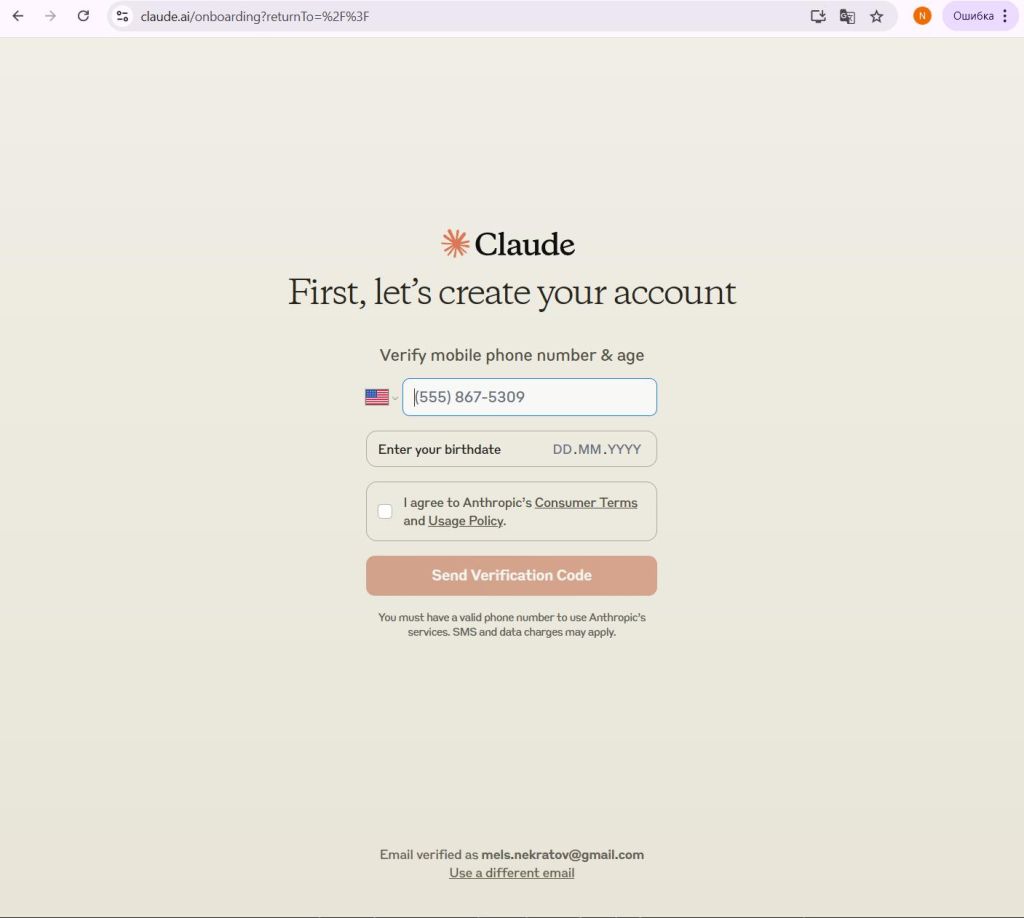
Claude allows you to register using your preferred signup method. Enter your details and complete the verification process.
During signup, you may need to:
- Add your email address
- Verify your email inbox
- Confirm your account details
After verification, your Claude account will be ready to use.
Step 3: Access the Claude Chat Dashboard
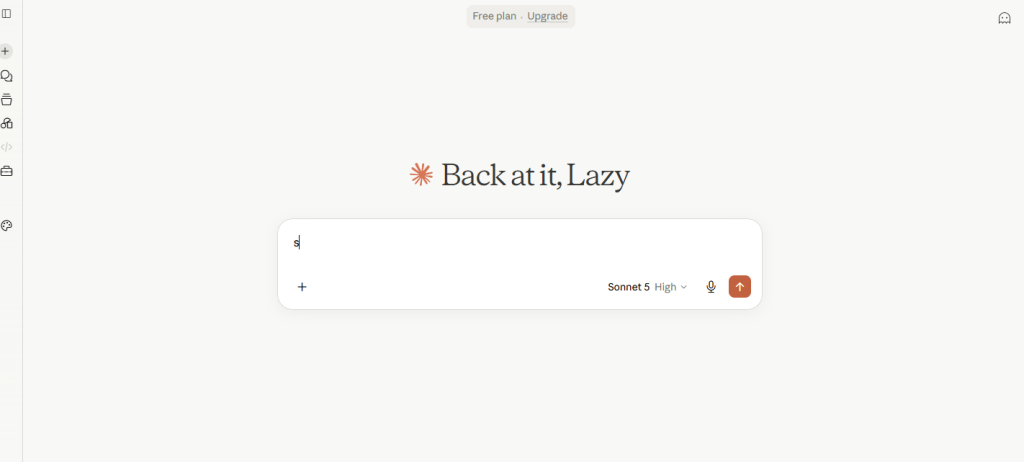
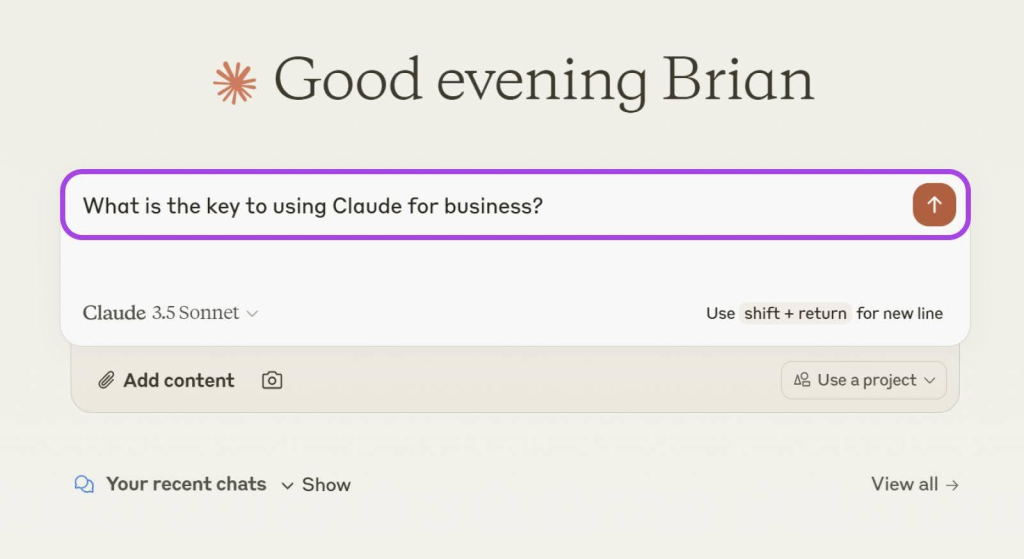
Once your account setup is complete, you will be taken to the Claude dashboard. This is where you can type your questions, upload files, and give instructions to Claude.
You can start with simple prompts, such as asking Claude to write content, explain a topic, summarize a document, or help with coding problems.
Tip: When you first start using Claude, try different types of prompts to understand how it responds and how you can get better results from your conversations.
How to Use Claude AI for the First Time
Once your Claude AI account is ready, you can start using it like a personal AI assistant. The interface is simple, and you do not need any technical experience to begin. You can ask questions, create content, analyze documents, learn new topics, or get help with everyday tasks.
If you are learning how to use Claude AI for free, the best way to start is by understanding how to write clear prompts. A good prompt helps Claude understand your goal and provide a more accurate response.
Step 1: Open the Claude Chat Interface
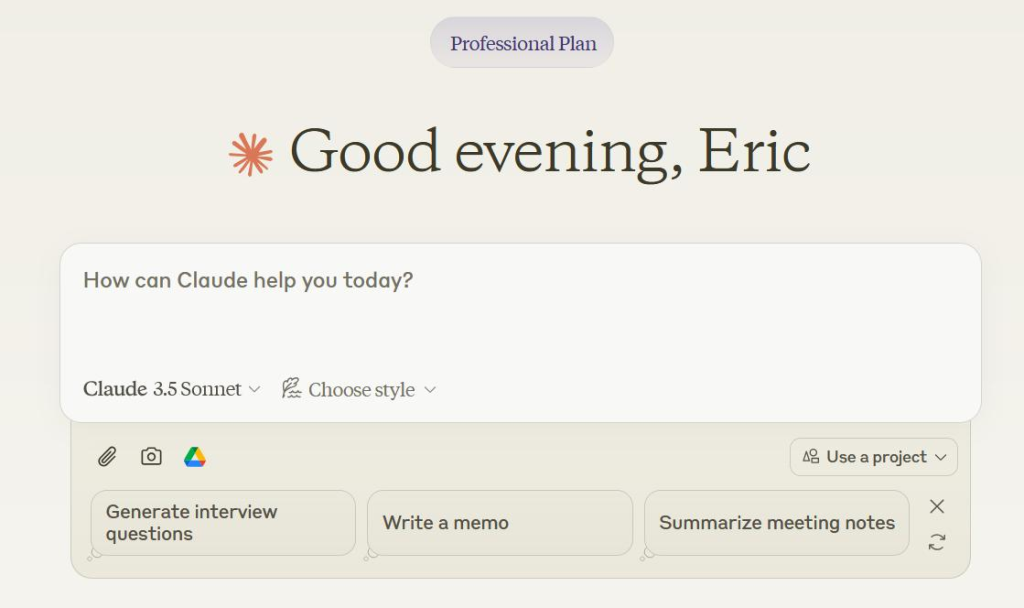
After signing in, you will see the main Claude chat window. This is where you can type your instructions and start a conversation.
You can use Claude for tasks like:
- Writing blog posts and articles
- Summarizing documents
- Creating content ideas
- Explaining difficult topics
- Getting programming assistance
The chat works like a normal conversation, so you can ask follow-up questions and improve the response step by step.
Step 2: Write Your First Prompt

Start with a simple request to understand how Claude responds. However, adding more details will usually give you better results.
For example:
Basic Prompt:
“Write an article about digital marketing.”
Advanced Prompt:
“Act as an experienced SEO content writer. Write a 1500-word beginner-friendly article about digital marketing trends in 2026. Use a clear heading structure with H2 and H3 sections, include practical examples, write in simple English, optimize the content for search engines, and make the article helpful for small business owners.”
A detailed prompt gives Claude important information about your goal, audience, tone, and expected output.
Step 3: Improve Claude’s Responses
You do not have to accept the first response Claude provides. You can continue the conversation and ask for improvements.
For example, you can ask Claude to:
- Make the content more detailed
- Rewrite it in a professional tone
- Add real-world examples
- Simplify complex explanations
- Create a shorter summary
This makes Claude more useful because you can guide the conversation until you get the result you need.
Step 4: Explore Different Claude AI Features

After learning the basics, try using Claude for different tasks. The free version can help with many everyday activities, including:
- Creating content drafts
- Reviewing and improving writing
- Explaining technical concepts
- Brainstorming ideas
- Analyzing text and documents
- Helping with coding problems
The more you experiment with different prompts, the better you will understand how to get useful answers from Claude AI.
Best Ways to Use Claude AI Free Version
Claude AI is more than a tool for answering simple questions. You can use it as a personal assistant for content creation, research, coding, learning, and business tasks. Once you learn how to write better instructions, Claude can help you complete complex tasks with more accurate and useful results.
Many users searching for how to use Claude AI for free only explore basic features, but the free version can handle many professional tasks when you provide clear context and detailed prompts.
Here are some practical ways you can use Claude AI:
Use Claude AI for Professional Content Writing
Creating high-quality content requires research, planning, and editing. Claude can help content writers and marketers create outlines, improve drafts, analyze topics, and develop SEO-focused content strategies.
You can use Claude for:
- SEO blog outlines
- Content research
- Article improvements
- Product descriptions
- Email campaigns
- Social media content ideas
Advanced Prompt Example:
“Act as a senior SEO content strategist with 10+ years of experience. I need you to create a detailed content plan for the keyword ‘3D modeling services’. Analyze the search intent, identify the target audience, and create a complete SEO outline with H1, H2, and H3 headings. Include related semantic keywords, common user questions, content gaps competitors may miss, and practical examples. The goal is to create helpful content that can rank on Google and satisfy users looking for professional 3D modeling solutions.”
This type of prompt gives Claude a clear role, objective, audience, and expected output, which helps generate more useful results.
Use Claude AI for Learning and Research
Claude can act as a personal tutor when you need help understanding difficult subjects. Instead of reading multiple resources, you can ask Claude to break down complex information into simple explanations.
You can use Claude for:
- Learning new concepts
- Summarizing research papers
- Creating study notes
- Explaining technical topics
- Preparing learning materials
Advanced Prompt Example:
“Act as an expert teacher in artificial intelligence. Explain the concept of large language models to a beginner who has no technical background. Start with a simple explanation, then gradually introduce technical concepts. Use real-world examples, create a comparison table, explain common misconceptions, and end with a short quiz to test understanding.”
Use Claude AI for Coding Assistance
Developers can use Claude to review code, understand errors, improve performance, and learn programming concepts. It can be useful for both beginners and experienced developers.
Claude can help with:
- Debugging errors
- Code reviews
- Writing functions
- Improving existing code
- Creating documentation
Advanced Prompt Example:
“Act as a senior software engineer and code reviewer. Analyze the following code and identify bugs, security issues, performance problems, and areas for improvement. Explain each issue clearly, suggest the best solution, and provide an optimized version of the code with comments explaining important changes. Assume the reader is an intermediate developer who wants to improve coding skills.”
Use Claude AI for Document Analysis
Long documents can take hours to review manually. Claude can help you summarize information, find important points, and extract useful insights from large files.
You can use Claude to:
- Summarize reports
- Extract important information
- Review business documents
- Analyze research material
- Create executive summaries
Advanced Prompt Example:
“Analyze this document as a professional research assistant. Create a structured summary covering the main arguments, important data points, key findings, limitations, and actionable insights. Highlight information that requires attention and create a short executive summary that can be understood by a business decision-maker.”
Use Claude AI for Business Tasks
Business owners and professionals can use Claude to improve daily workflows. It can help create marketing ideas, prepare documents, write professional communication, and organize information.
Common business uses include:
- Writing customer emails
- Creating marketing plans
- Preparing meeting summaries
- Developing business ideas
- Improving customer responses
The main advantage of Claude is that you can guide it according to your specific needs. The more details you provide in your prompt, the better results you can achieve from the free version.
How to Get Better Results From Claude AI Free Version

Using Claude AI is simple, but getting high-quality answers depends on how you communicate with it. Many users type short questions and receive basic responses because they do not provide enough context. A well-written prompt can help Claude understand your goal and create more accurate results.
Whether you are writing content, analyzing information, or solving a technical problem, these tips will help you get better results when you use Claude AI for free.
Write Clear and Specific Prompts
Claude works better when you explain exactly what you need. Instead of asking a general question, include details about the purpose, audience, format, and expected result.
Weak Prompt:
“Write about AI tools.”
Better Prompt:
“Write a beginner-friendly 1200-word article about AI productivity tools for small business owners. Include practical examples, benefits, limitations, and a comparison section. Use simple English with clear H2 and H3 headings.”
The second prompt gives Claude more direction, which helps it create a more useful response.
Give Claude a Specific Role
One of the best ways to improve responses is by assigning Claude a role. This helps the AI understand the level of expertise and writing style you expect.
Examples:
- “Act as an experienced SEO specialist…”
- “Act as a senior software developer…”
- “Act as a professional business consultant…”
A clear role helps Claude provide answers that match your requirements.
Provide Context Before Asking Questions
Claude does not know your specific situation unless you explain it. Adding background information helps it generate more relevant answers.
For example, instead of:
“Create a marketing plan.”
Try:
“I run a small online store selling handmade products. Create a 3-month marketing plan focused on increasing website traffic, improving social media engagement, and generating more sales with a limited budget.”
The extra context allows Claude to create a solution based on your actual needs.
Use Follow-Up Questions to Improve Responses
You do not need to start a new chat every time. Claude remembers the conversation context, so you can refine the answer through follow-up instructions.
You can ask:
- “Make this explanation simpler.”
- “Add more examples.”
- “Rewrite this for beginners.”
- “Make it more professional.”
- “Turn this into a checklist.”
This step-by-step approach usually produces better results than asking for everything in one prompt.
Ask Claude to Review and Improve Its Own Work
Claude can also help you evaluate its responses. After generating content or ideas, ask it to check for improvements.
Example Prompt:
“Review your previous answer as an expert editor. Identify any weak points, missing information, or areas that need improvement. Then rewrite the answer with better structure and clarity.”
This method helps you create more polished and reliable outputs.
By using detailed prompts, adding context, and refining responses, you can get much more value from the Claude AI free version without needing advanced technical skills
How to Use Claude AI Mobile App

Using Claude AI on a mobile device gives you quick access to an AI assistant whenever you need help. Whether you are traveling, working remotely, or simply away from your computer, the mobile app allows you to continue conversations, review information, and complete small tasks without opening a desktop browser.
In practical use, the mobile app works best for quick tasks such as brainstorming ideas, improving messages, summarizing information, and capturing thoughts when you do not have access to a full workstation. For longer projects like detailed research or large content creation, a desktop environment may feel more comfortable because it provides a bigger screen and easier editing experience.
Download and Set Up the Claude AI Mobile App
Start by installing the official Claude app from your device’s app store. Always check that Anthropic is listed as the developer before downloading.
After installation:
- Open the Claude app
- Sign in with your existing account
- Create a free account if you are new
- Allow required permissions if needed
- Start a new conversation
Once you log in, your account stays connected, so you can access your conversations across supported devices.
Use Claude Mobile for Quick Everyday Tasks
The biggest advantage of the mobile app is convenience. You can use Claude whenever you need quick assistance instead of waiting until you reach your computer.
Some practical examples include:
Turning Ideas Into Content
If you get a content idea while away from your desk, you can immediately ask Claude to create an outline, improve the idea, or suggest related topics.
Example:
“I want to write an article about AI tools for small businesses. Create five content angles with search intent and possible headings.”
Summarizing Information Quickly
Reading long information on a phone can be difficult. Claude can help you understand important points faster.
You can use it to:
- Summarize articles
- Explain complicated information
- Extract key points from documents
- Create quick notes
For example, a professional can upload a document before a meeting and ask Claude to create a short summary with important discussion points.
Improve Messages and Professional Communication
Many users find mobile AI tools useful for improving everyday communication.
Claude can help you:
- Rewrite emails professionally
- Improve customer responses
- Make messages clearer
- Adjust writing tone
Example:
“Rewrite this email in a professional but friendly tone. Keep it short and make the main request clear.”
Use Better Prompts on Mobile
One common mistake mobile users make is writing very short prompts because typing on a phone takes more effort. However, adding basic context can significantly improve Claude’s responses.
Instead of:
“Write a marketing plan.”
Use:
“Act as a digital marketing consultant. Create a 3-month marketing plan for a small e-commerce business. Include SEO, social media, content ideas, and measurable goals.”
A clear prompt helps Claude understand your goal and reduces the need for multiple follow-up messages.
When Should You Use the Mobile App vs. the Desktop Version?
The mobile app is best for:
- Quick questions
- Idea generation
- Short writing tasks
- Learning on the go
- Reviewing information
The desktop version is usually better for:
- Long articles
- Large research projects
- Detailed document editing
- Complex coding tasks
Using both versions together gives you more flexibility. You can capture ideas on mobile and complete detailed work later on your computer.
Claude AI Supported Countries: Where Can You Access Claude?
Before signing up for Claude AI, many users first check whether the service works in their country. Anthropic has expanded Claude’s availability to users in many regions, but access can depend on your location, account requirements, and the platforms available in your area.
If you are learning how to use Claude AI for free, checking availability before creating an account can save time and help you understand whether you can access Claude’s free features.
How to Check Claude AI Availability in Your Country
The most reliable way to check access is to visit Claude’s official website or download the official mobile app from your device’s app store.
Follow these steps:
- Open the Claude website or official app store page.
- Try creating a new account.
- Enter your email address and complete the signup process.
- Check whether Claude allows you to continue based on your location.
If Claude supports your region, you should be able to create an account and access the available features.
What Can Affect Claude AI Access?
Your location is not the only factor that determines access. Other requirements may affect your ability to use Claude, including:
- Local availability rules
- App store support in your region
- Account verification requirements
- Payment availability for paid plans
For example, two users in different countries may experience different signup steps or payment options even when both can access Claude.
How Claude AI Availability Impacts Your Experience
Your region may affect:
- Whether you can create a Claude account
- Which subscription options appear
- Mobile app availability
- Available payment methods
- Verification steps during signup
Free users should also remember that Claude’s usage limits can apply regardless of location. The free plan provides access to Claude’s features, but availability and limits may change over time.
What Should You Do If Claude AI Is Not Available?
If you cannot access Claude from your location, avoid using unofficial methods to bypass restrictions because they may create account or security problems.
Instead, you can:
- Check Anthropic’s official updates
- Try accessing Claude again when availability expands
- Use other AI tools available in your region
Common Problems When Using Claude AI Free Version

Claude AI is easy to use, but like any online tool, you may face a few issues while using the free version. Sometimes users experience message limits, login problems, slow loading, or responses that do not fully match their expectations.
If you are learning how to use Claude AI for free, knowing these common problems and their solutions will help you get a smoother experience and make better use of the available features.
Claude AI Free Limit Reached
One common issue with the free version is reaching the usage limit. Claude provides free access, but it limits how many messages you can send within a certain period. The limit helps manage system availability for all users.
If you reach the limit, you can:
- Combine multiple questions into one detailed prompt
- Avoid sending repeated requests for the same task
- Use shorter conversations for simple questions
- Wait until your access becomes available again
A well-planned prompt can help you get more value from each message instead of using multiple requests for one task.
Claude AI Is Not Loading or Responding
Sometimes Claude may not open properly or may take longer to respond. This usually happens because of internet issues, browser problems, or temporary service delays.
You can try these quick fixes:
- Refresh the Claude website
- Check your internet connection
- Clear your browser cache and cookies
- Try opening Claude in another browser
- Disable extensions that may block website features
In most cases, these simple steps can solve common loading problems.
Claude AI Login or Account Issues
Some users may have trouble signing in, verifying their email, or accessing their account. These issues often happen because of incorrect login details or incomplete account verification.
To fix account problems:
- Make sure you use the same login method you selected during signup
- Check your email for verification messages
- Confirm that your internet connection is stable
- Try signing in again after a short time
Keeping your account details updated can prevent many login-related problems.
Claude AI Provides Weak or Incorrect Responses
Sometimes Claude may provide an answer that feels too general or does not fully solve your problem. This usually happens when the prompt does not include enough information.
To get better responses, give Claude more context about:
- Your goal
- Your target audience
- The format you need
- Examples of the expected result
For example, instead of writing:
“Explain SEO.”
Write:
“Explain SEO for a beginner website owner. Cover keyword research, on-page SEO, link building, and provide practical examples for each step.”
A detailed prompt helps Claude understand your expectations and generate a more useful answer.
Understanding Free Version Limitations
The free version of Claude AI works well for everyday tasks like writing, learning, research, and basic coding help. However, users who need frequent AI assistance may notice usage limits compared to paid plans.
For most beginners, the free version provides enough features to explore Claude and understand how AI can support different tasks. Knowing its limitations allows you to plan your workflow and use your available messages more effectively.
Claude AI Free Tips and Tricks to Get More Value
Using Claude AI becomes much easier when you know the right techniques. Many beginners use simple questions and get basic answers, but a few small improvements can help you get more accurate, detailed, and useful results.
If you understand how to use Claude AI for free effectively, you can use it for writing, research, coding, learning, and many other tasks without wasting your available usage.
Here are some practical tips to improve your Claude AI experience:
Tip 1: Write Technical Prompts With Clear Instructions
Claude works better when you explain exactly what you need. Instead of asking a general question, provide details about the task, expected output, and level of expertise.
For example, if you need help with coding, do not simply ask:
“Fix my code.”
Instead, write:
“Act as a senior Python developer. Review this code, identify errors, explain the cause of each issue, and provide an optimized solution with comments explaining the changes.”
A clear technical prompt helps Claude understand the problem and provide a more accurate solution.
Tip 2: Add Context Before Asking Questions
Claude does not know your background, goals, or audience unless you explain them. Adding context helps it create answers that match your specific needs.
For example:
Instead of:
“Create a marketing plan.”
Try:
“I run a small e-commerce store selling fitness products. Create a 90-day marketing plan focused on increasing organic traffic, improving social media engagement, and generating more sales.”
The more relevant information you provide, the better Claude can understand your situation.
Tip 3: Use Claude for One Specific Goal at a Time
Avoid combining multiple unrelated tasks in one prompt. When you give Claude a clear objective, it can focus better and produce stronger results.
For example, instead of asking
“Write an article, create social media posts, and make an email campaign.”
Break it into separate tasks:
- Create an SEO article outline
- Write social media captions
- Draft an email campaign
This approach makes the output more organized and easier to improve.
Tip 4: Ask Claude to Improve Its Own Work
Your first response does not always have to be the final result. You can ask Claude to review, edit, and improve its previous answer.
Useful follow-up instructions include:
- “Make this easier for beginners to understand.”
- “Add real-world examples.”
- “Improve the structure and readability.”
- “Find missing information and update the answer.”
This helps you turn a basic response into a more polished result.
Tip 5: Create and Save Useful Prompt Templates
If you perform similar tasks regularly, save your best prompts and reuse them. This saves time and helps you maintain consistent results.
You can create prompt templates for:
- Blog writing
- SEO research
- Coding tasks
- Business emails
- Document summaries
- Learning new topics
You only need to adjust small details instead of creating a new prompt every time.
Tip 6: Give Examples of the Result You Want
Claude understands your requirements better when you show examples. Examples help it match your preferred style, format, and tone.
For example:
“Rewrite this paragraph in a professional but friendly tone. Keep sentences short, avoid complex words, and make it suitable for beginners.”
This technique works especially well for content writing, editing, and business communication.
Tip 7: Verify Important Information
Claude can provide helpful answers, but you should always review important information before using it for business, research, or professional decisions.
For important tasks:
- Check facts from reliable sources
- Review technical recommendations
- Confirm statistics and data
- Ask Claude to explain its reasoning
Using Claude as an assistant rather than blindly accepting every answer helps you get more reliable results.
Claude AI Free Version vs Paid Plan: What Is the Difference?
Claude AI offers both free and paid options, allowing users to choose a plan based on how often they use AI and what tasks they need to complete. The free version works well for beginners who want to explore Claude for writing, research, learning, and everyday tasks. However, users who depend on AI regularly may need higher usage limits and additional features.
The free plan is a good starting point, while the Claude Pro plan costs $20 per month for monthly billing or around $17 per month when billed annually. The paid plan provides more usage capacity and extra features for users who need Claude for professional work.
Claude AI Free Version: Best for Beginners and Casual Users
The free version gives you access to Claude’s main features without any payment. It is useful for testing the platform, learning how AI works, and completing everyday tasks.
You can use the free version to:
- Write and improve content
- Generate ideas
- Summarize documents
- Learn new topics
- Get explanations for difficult concepts
- Receive basic coding assistance
For students, beginners, and occasional users, the free version provides enough features to explore Claude and complete common tasks.
Claude AI Paid Plan: Better for Regular Users
The paid plan is designed for people who use Claude more frequently. It provides higher usage limits and additional features that can help professionals complete larger tasks more efficiently.
A paid plan can be useful for:
- Content writers managing multiple projects
- Developers working on complex coding tasks
- Businesses using AI in daily workflows
- Researchers handling large amounts of information
Should You Upgrade to Claude Pro?
You can complete many tasks with the free version, including writing, learning, research, and basic problem-solving. However, upgrading makes sense if you use Claude every day and frequently reach the free usage limits.
A paid plan may be worth considering if you:
- Use Claude for professional projects
- Need more messages and higher limits
- Work with large documents regularly
- Depend on AI for your daily workflow
Starting with the free version is a practical choice for most beginners. You can explore Claude’s features first and upgrade only when you need more advanced access.
Conclusion: Start Using Claude AI Free Version Today
Claude AI makes it easier for users to complete everyday tasks like writing, learning, research, coding, and brainstorming. The free version gives beginners a simple way to explore AI features without paying for a subscription.
Learning how to use Claude AI for free starts with creating an account, understanding how to write better prompts, and experimenting with different features. Whether you are a student, content creator, developer, or business professional, Claude can help you save time and improve your workflow.
The key to getting better results is not only using the tool but also giving clear instructions. Detailed prompts, proper context, and follow-up questions can help you get more accurate and useful responses.
Start with the free version, explore its capabilities, and upgrade only when you need higher limits or advanced features. With the right approach, Claude AI can become a valuable assistant for your daily tasks.