
Ask five people what productivity software means and you will get five different answers. Some picture Google Docs and spreadsheets. Others think of task managers like Notion or Asana. A few describe an entire office suite bundled into one subscription.
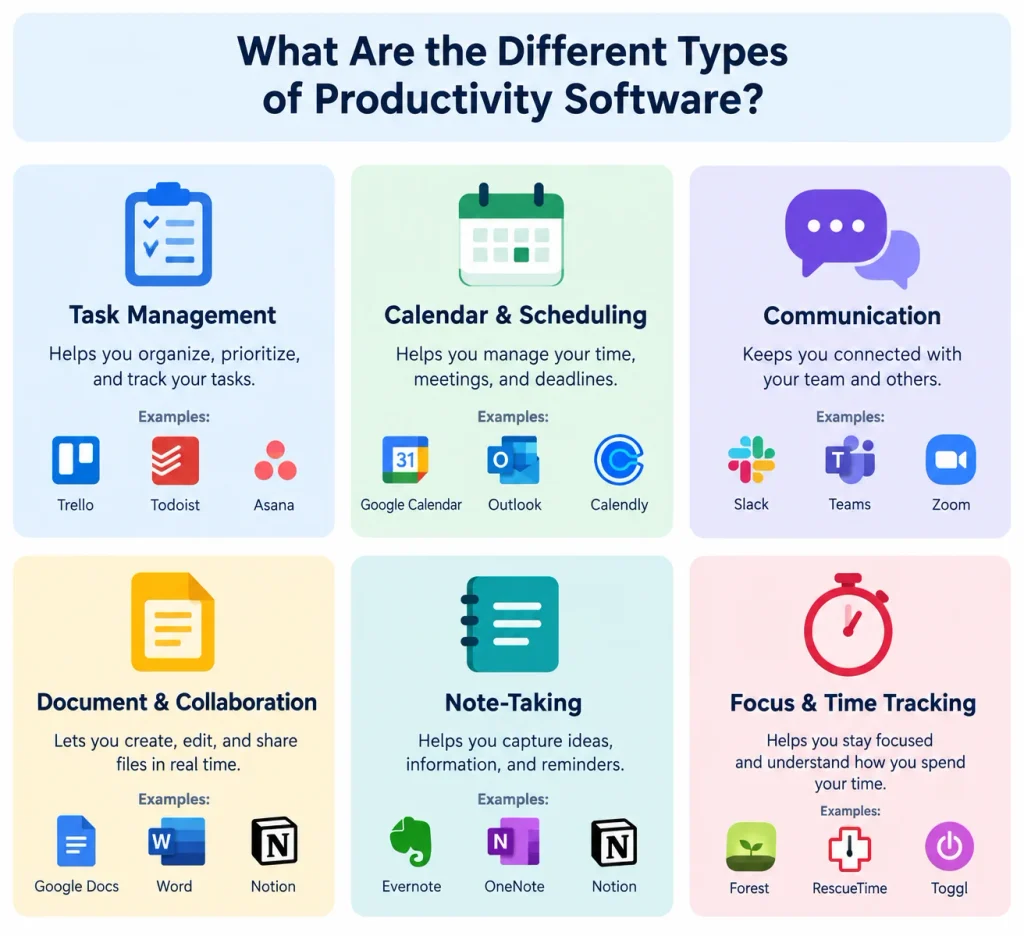
None of them are wrong. Productivity software is a category made up of twelve distinct tool types. Most people can name only three or four of them without stopping to think.
This guide covers all twelve types. It names the actual tools people use in each one. It shows what they cost right now. It gives you a straightforward way to pick the right combination instead of collecting apps you abandon after a month.
Quick answer: Productivity software falls into twelve main types.
- Word processing
- Spreadsheets
- Presentations
- Note taking
- Task and project management
- Communication and collaboration
- Calendar and time management
- Cloud storage
- Email management
- Whiteboard and visual collaboration
- Automation and workflow tools
- AI powered productivity assistants
Suites like Google Workspace and Microsoft 365 bundle several of these into one subscription as part of the modern digital workplace. Standalone SaaS tools handle just one job each.
What Is Productivity Software?
Productivity software is any digital tool that helps you create work or organize work or finish work faster than doing it by hand. That covers writing. It covers calculating. It covers presenting. It covers scheduling. It covers storing files. It covers talking to a team. Most of it today is delivered as SaaS. That means software you access through a browser or app instead of software you install and manage yourself. The format keeps changing. The goal never does. It is to cut down the time and effort it takes to get something done.
The category is broad on purpose because getting work done means something different depending on who you ask. A student writing an essay uses productivity tools. So does a freelancer sending an invoice. So does a large company with two hundred employees coordinating a product launch. None of their tools look alike but all of them count as productivity software.
It is also a bigger market than most people realize. A 2026 market report from The Business Research Company puts global spending on productivity software at $74.9 billion in 2025. That figure grows to $86.9 billion in 2026. It is on pace to reach $147 billion by 2030. Remote work is one driver behind that growth. AI features are another. Companies consolidating scattered tools into connected digital workplace platforms make up the third.
That growth points to a real problem too. Separate research from Pega analyzed millions of hours of desktop activity. It found that employees switch between critical work applications well over a thousand times a day. All that switching adds up to hours of lost focus every week. A lot of what gets sold as productivity software is really an attempt to shrink that number. That happens through faster task management. It happens through quicker file retrieval. It happens through better knowledge management.
The 12 Types of Productivity Software (With Real Examples)
Here is every major category. Here is what it does. Here are the tools people actually use for it in 2026.
1. Word Processing Software
Word processing software handles writing and editing and formatting text documents. Think reports. Think letters. Think essays. Think proposals. Most tools in this category now support real time collaborative editing. They support track changes. They support comments. It is not just a blank page and a cursor anymore.
Real examples include:
- Google Docs
- Microsoft Word
- Apple Pages
- LibreOffice Writer
This is the first thing most people picture when they hear the term productivity software. It is the most universally used category across school and work and personal life.
2. Spreadsheet Software
Spreadsheet software organizes data into rows and columns. It runs formulas and macros. It builds models for budgeting and inventory tracking and financial forecasting. Pivot tables and built in data visualization turn raw numbers into something you can read at a glance.
Real examples include:
- Microsoft Excel
- Google Sheets
- Apple Numbers
- Airtable for teams that want spreadsheet logic combined with no code database features
3. Presentation Software
Presentation software builds slide decks for pitches and lectures and reports.
Real examples include:
- Microsoft PowerPoint
- Google Slides
- Apple Keynote
- Canva for teams that want a more visual less corporate looking deck
AI slide generation is the newest shift in this category. Tools like Gamma turn a rough outline into a formatted deck in minutes. That is changing how fast teams put decks together.
4. Note Taking Software
Note taking software captures and organizes information quickly. That means meeting notes. That means research. That means random ideas. Fast search is built in.
Real examples include:
- Notion
- Evernote
- Microsoft OneNote
- Obsidian for people who prefer linked Markdown notes that work like a personal wiki or a second brain
This category overlaps heavily with personal knowledge management. The point is not just capturing information. The point is being able to find it again months later.
5. Task and Project Management Software
Task and project management software tracks what needs to get done. It tracks who is doing it. It tracks when it is due. That can be a simple personal to do list. It can be a full Kanban board or Gantt chart tracking dependencies across a team.
Real examples include:
- Asana
- Trello
- ClickUp
- Monday.com
- Jira which remains the default for software teams running sprint planning and agile workflows
6. Communication and Collaboration Software
Communication and collaboration software covers messaging and video calls and live collaboration on shared work. This category grew faster than almost any other once remote and hybrid work became normal. It now includes async communication features built specifically so teams do not need to be online at the same time. Those features include recorded video updates. They include threaded channels.
Real examples include:
- Slack
- Microsoft Teams
- Zoom
- Google Meet
7. Time Management and Calendar Software
Time management and calendar software handles scheduling and calendar management and time tracking. It syncs directly with your task tools.
Real examples include:
- Google Calendar
- Microsoft Outlook Calendar
- Calendly for booking meetings with people outside your company
- Toggl Track or RescueTime for time tracking and focus analytics
These tools help you build habits like time blocking or the Pomodoro technique into your day.
8. Cloud Storage and File Sharing Software
Cloud storage and file sharing software stores files in one place and shares access with others. Version control means you are never stuck hunting for a file named final_v3_ACTUAL.docx. Almost every other category on this list depends on it.
Real examples include:
- Google Drive
- Dropbox
- Microsoft OneDrive
- Box which shows up often in industries with strict compliance and encryption requirements
9. Email Management Software
Email management software handles sending and organizing and sorting through email at scale. Most lists of productivity software skip this category entirely even though email is the single most used tool on this whole list.
Real examples include:
- Gmail
- Microsoft Outlook
- Superhuman built for fast inbox zero workflows
- Spark for a unified inbox across accounts
This is different from email marketing software. Email marketing software is built to send campaigns to customers rather than manage your own inbox. If that is what you need our email marketing services cover that separately.
10. Whiteboard and Visual Collaboration Software
Whiteboard and visual collaboration software gives teams a shared canvas for brainstorming and diagramming and mapping out ideas visually instead of in a document or spreadsheet. It has become its own category instead of a feature bolted onto communication tools. Remote teams needed something to replace the physical whiteboard in a conference room.
Real examples include:
- Miro
- FigJam
- Lucidchart
These tools typically run between $8 and $20 per user each month depending on the tier. Design sprints use this category. So do retrospectives. So do mind mapping sessions. This is where the category earns its keep.
11. Automation and Workflow Software
Automation and workflow software connects your other tools so information moves between them without manual copying and pasting. Think of a new lead syncing straight into a CRM. Or think of a form submission triggering a Slack alert on its own.
Real examples include:
- Zapier
- Make
- Microsoft Power Automate
- n8n
n8n is open source. It is a no code automation option gaining ground with technical teams. Those teams use it to build their own automated workflows through API integrations.
12. AI Productivity Tools
AI productivity tools barely existed five years ago. Now this category touches almost everything else on this list. Generative AI tools summarize meetings. They draft a first version of a document. They clean up spreadsheet formulas. They automate repetitive tasks inside the software you already use.
Real examples include:
- ChatGPT and Claude for writing and research
- Notion AI and Microsoft Copilot built directly into existing suites
- Otter.ai and Fireflies.ai for meeting transcription
- Grammarly for writing help
AI agents are tools that carry out multi step tasks on their own instead of just answering a question. They are the fastest moving part of this category right now.
By 2026 AI is not really a separate purchase decision for most people. It has become a feature checkbox inside the tools already listed above. Google Workspace and Microsoft 365 now bundle their AI assistants Gemini and Copilot into most paid tiers. That alone is quietly becoming one of the biggest reasons businesses pick one suite over the other. We cover how AI is reshaping software platforms more broadly in our guide to AI platform architecture.
Some platforms bundle several of these categories into a single product. That is a productivity suite. It is covered next. Others stay standalone and focus on doing just one of these jobs extremely well.
What Is a Productivity Suite?
A productivity suite bundles individual productivity tools together and sells them as one product. Instead of asking you to buy and manage each type separately it gives you one package. Files created in one app inside the suite open correctly in the others. Storage and permissions are unified. Billing runs through a single subscription.
The two dominant suites in 2026:
- Google Workspace bundles Gmail and Docs and Sheets and Slides and Drive and Meet and Calendar. Gemini AI is now built into every paid tier.
- Microsoft 365 bundles Word and Excel and PowerPoint and OneDrive and Teams and Outlook. Copilot is available as an add on or bundled depending on the plan.
Smaller and open source alternatives exist too. Zoho Workplace and LibreOffice appeal to businesses that want lower per seat costs. They also appeal to businesses that simply do not want to depend on Google or Microsoft for everything.
The tradeoff with any suite is flexibility. You lock into one vendor’s version of each tool even when a standalone competitor does one specific job better. Notion’s note taking for example is stronger than what either major suite offers natively. Suites make the most sense once you need several of the tool types above working together without stitching them into one workflow yourself. Paying for a full bundle to use one or two apps rarely makes sense.
Productivity Suite vs. Business Software: What’s the Difference
These two terms get used interchangeably. Mixing them up leads to buying the wrong tool for the wrong reason.
Productivity software is defined by function. It helps someone create work or organize work or finish work faster no matter who is using it. A student and a freelancer and an employee can all be using productivity software at the same time. None of them need to be running a business for that to be true.
Business software is defined by purpose. It is built specifically to run the operational side of a company. Examples include accounting platforms and payroll systems and CRM software and inventory management. These tools do not help someone write or organize faster. They exist to manage a business function that only makes sense in the context of running an organization.
Here is a simple test. If the tool would still be useful to a student or freelancer with zero business involved it is productivity software. If it only exists to manage a business function it is business software.
Personal vs. Business and Team Productivity Software
Personal productivity software is built around a single user. That means individual to do lists. That means private notes. That means one calendar. A student using Notion for class notes sits squarely in this category. So does a freelancer relying on Google Calendar. Pricing is typically a flat fee or free.
Business or team productivity software adds a layer personal tools were never built to handle. Multiple people work on the same files or tasks or projects at once. That brings requirements personal tools simply do not have. Shared documents need permission controls. Task managers need to show who is assigned to what. Someone needs admin access to onboard and offboard people. Pricing shifts to a model priced per user per month since cost scales with headcount.
The practical difference shows up fastest when a personal tool gets pushed into a team setting it was not designed for. A personal note taking app with no permission system means anyone with the link can edit or delete a shared document. That is the moment a growing team realizes it needs software built for multiple users from the ground up.
Free vs. Paid Productivity Software: Real 2026 Pricing
Here is what the free versus paid gap looks like right now. It uses the two dominant suites plus a few standalone tools as reference points.
| Tool | Free Tier | Entry Paid Tier | Mid Paid Tier |
|---|---|---|---|
| Google Workspace | Not available for businesses | Business Starter: $7/user/month | Business Standard: $14/user/month |
| Microsoft 365 | Not available for businesses | Business Basic: $7/user/month | Business Standard: $14/user/month |
| Notion | Free for individuals | Plus: $10/seat/month (annual) | Business: $20/seat/month (annual) |
| Asana | Personal: Free | Starter: $10.99/user/month | Advanced: $24.99/user/month |
| Slack | Free | Pro: $7.25/user/month | Business+: $15/user/month |
Pricing is per user per month and billed annually where noted. It reflects publicly listed rates as of September 2026.
Free tiers work well for individuals and students and very small teams. They are a reasonable place to start without much budget. They are also designed to convert users into paying customers eventually. Limits show up right where storage or collaboration or admin controls start to matter.
Stay on a free plan as long as you are comfortably within its limits. Once collaboration or storage or security needs outgrow what the free tier allows the time you lose working around those limits costs more than paying for the upgrade.
Custom vs. Off the Shelf Productivity Software
Off the shelf productivity software is built to serve millions of people who all work differently. Every feature is a compromise between what you need and what the average user needs. Custom software removes that compromise. It is not automatically the right call for every business no matter what some software agencies claim.
Off the shelf tools make sense when your workflow is fairly standard since most content and task management and communication needs are. They also make sense when you need something running today rather than in three months. They make sense when your team is small enough that per seat pricing stays cheap compared to building something from scratch.
Custom software starts making more sense once you have outgrown what off the shelf tools support. That shows up when you find yourself stitching together three or four apps with automation just to cover one workflow. It also makes sense once per seat pricing on a prebuilt suite scales faster than your headcount justifies. It makes sense when your process is truly unusual. That might be a specific approval chain. It might be a compliance requirement. It might be a reporting structure no platform quite supports out of the box.
Most teams should start with off the shelf tools. Only look into custom software once you can point to a specific recurring workaround costing real time or money. If that sounds like where you are it is worth a conversation with a team that builds custom websites and business tools regularly. Our web development team can help instead of forcing another prebuilt tool to do a job it was never designed for.
How to Choose the Right Productivity Software for You
Picking the right tools comes down to asking good questions before you commit to anything. It does not mean grabbing whatever is trending.
- Start with the problem not the tool. Figure out what is actually slowing you down. It might be scattered notes. It might be missed deadlines. It might be too much time spent hunting for files. Identify that before you look at any specific software.
- Map how you actually work. Write out your current workflow even if it is messy. If your process is fairly standard an off the shelf tool will fit fine.
- Decide between individual tools and a suite. If you only need one or two categories from the list above a standalone tool is more flexible and cheaper. If you need several working together a suite makes sense.
- Check whether it needs to support a team not just you. If other people will be using the same tool permission controls and admin features stop being optional.
- Test it with real work instead of a demo. Problems that never show up in a short demo surface once real files and real deadlines get involved.
- Check how it fits with the tools you already use. A new tool that does not integrate with your existing calendar or storage or communication apps becomes another disconnected silo.
- Know when free stops being enough. Revisit the pricing comparison above once your usage grows past what a free tier can realistically support.
Quick recommendations by situation:
Solo freelancer or student. Free tools cover almost everything you need.
- Google Docs and Sheets
- A free Notion or Trello account
- Google Calendar
Small team of two to fifteen people. A single suite such as Google Workspace or Microsoft 365 paired with one dedicated task manager like Asana or ClickUp covers it.
Growing business of fifteen to a hundred people. Add dedicated communication software like Slack or Teams. Bring in automation tools like Zapier to connect systems. Start evaluating admin and security features seriously.
Enterprise or highly regulated teams. Prioritize compliance features and audit trails. If your workflow is truly unusual weigh a custom solution against stretching a generic platform further than it was designed to go.
Why Companies Invest in Collaborative Productivity Software
Work stopped happening in one room a long time ago. Teams spread across time zones and remote setups need shared live tools because coordinating without them breaks down fast. The biggest shift is having a single source of truth. That means a document or task list that lives in one shared place instead of scattered across email threads and personal drives.
That same shared space gives teams visibility they would not otherwise have. Shared task boards let everyone see what everyone else is working on without a status meeting. That catches duplicate work early. This ties back to the problem of switching between apps covered earlier. Platforms that combine chat and documents and task tracking in one place cut down on that fragmented workday where teams constantly hop between tools. They also support the centralized knowledge management that growing teams eventually need.
Conclusion
Productivity software is not one thing. It is a category made up of twelve distinct types. Each type solves a different piece of the same problem. That problem is getting work done with less friction. The right combination depends on how you actually work. It does not depend on which suite or app happens to be trending this year.
If your needs are simple and fairly standard a free tool or a light paid tier will cover it. You might be managing a team. You might be handling sensitive data. You might be constantly working around the limits of a generic tool. In any of those cases it is worth looking past the default options. That could mean upgrading to a paid suite. It could mean building something custom for your workflow.
Either way start with the actual problem rather than the tool. Map your real workflow before you pick anything. Revisit the choice as your needs grow. The stack that fits a solo freelancer rarely still fits the same person running a team of ten people two years later.
Your team’s real bottleneck might be content and marketing workflow rather than internal tooling. Our content marketing services are built around exactly that kind of organized process mapped to keywords. Get in touch with our team if you are weighing whether a custom solution makes sense for your business.
Frequently Asked Questions
What are the main types of productivity software? The main types are:
- Word processing
- Spreadsheets
- Presentations
- Note taking
- Task and project management
- Communication and collaboration
- Calendar and time management
- Cloud storage
- Email management
- Whiteboard and visual collaboration
- Automation and workflow tools
- AI powered productivity assistants
Suites like Google Workspace and Microsoft 365 bundle several of these together.
What’s the difference between a productivity suite and individual productivity tools?
A suite bundles several tool types under one subscription with shared storage and a consistent interface. Individual tools are standalone. They are often more flexible or better at one specific job. They do not sync as tightly though. Suites make sense once you need several categories working together. Standalone tools make sense if you only need one or two.
Is free productivity software actually usable or does it force an upgrade eventually?
Free tiers are capable for individual use and light collaboration. Limits show up around storage and how many people can collaborate at once and admin controls. That is exactly where growing usage tends to bump into them first.
Do I need business or team productivity software or is personal software enough?
Personal software works fine for a single user managing their own work. Multiple people might need to edit the same files. They might need to track shared tasks. They might need permission controls. Once that happens personal tier tools start breaking down. That is the signal to move toward software built for multiple users.
Are AI productivity tools replacing traditional software or just adding to it?
Mostly adding to it as of 2026. AI features like Gemini in Google Workspace or Copilot in Microsoft 365 are being built directly into existing tools rather than replacing them outright. Standalone AI tools like ChatGPT and Otter.ai get used alongside traditional software instead of replacing it.
What’s the best productivity software for a small business?
For most small teams a single suite like Google Workspace or Microsoft 365 priced around $7 to $14 per user per month covers documents and email and storage. Pairing it with one dedicated task manager like Asana or ClickUp rounds out the stack.
Is custom productivity software worth it for a growing business?
Only once you can point to a specific recurring workaround costing real time or money. That might be a workflow no off the shelf tool supports. It might be per seat costs scaling faster than your headcount justifies. Most businesses should exhaust off the shelf options first.